The customer profiles in PAYD Pro Plus also store the customer’s survey results. Follow the instructions below to view survey results in a customer profile.
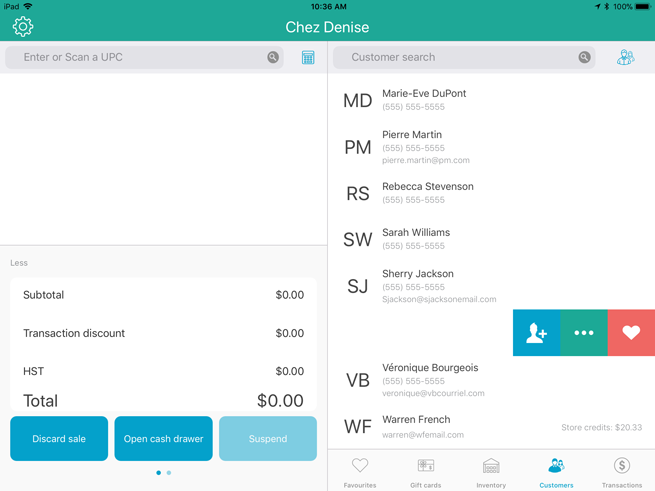
1. On the primary iPad, in the Sale screen, tap Customers at the bottom of the right pane.
2. In the Customer Search screen, search for the customer you wish to view.
3. Slide the customer’s name from right to left, revealing three buttons.
4. Tap the Edit button ( ).
).
The Customer details screen appears.
5. Tap the History tab at the top of the right pane.
6. Tap Survey questions.
7. Choose what you wish to view:
● If you wish to view a summary of their responses:
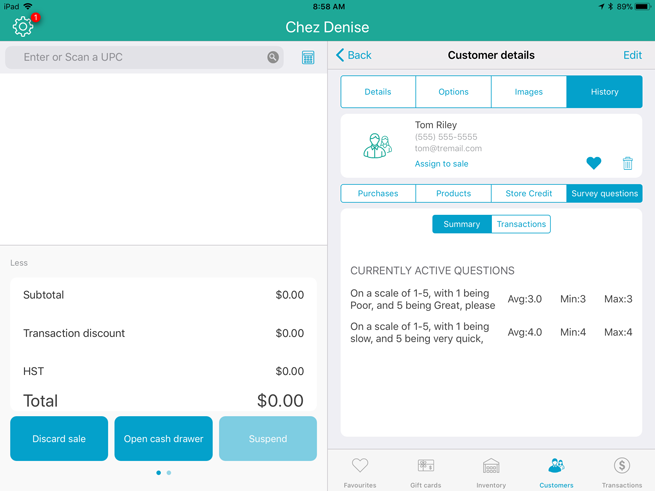
a. Tap Summary.
A summary of the customer’s survey responses appears below.
b. Once finished viewing, proceed to step 8.
● If you wish to view transactions associated with the customer’s survey responses:
a. Tap Transactions.
b. Tap inside the Display transactions with stars below/equal to field.
A Find sales with a survey ratings below popup appears.
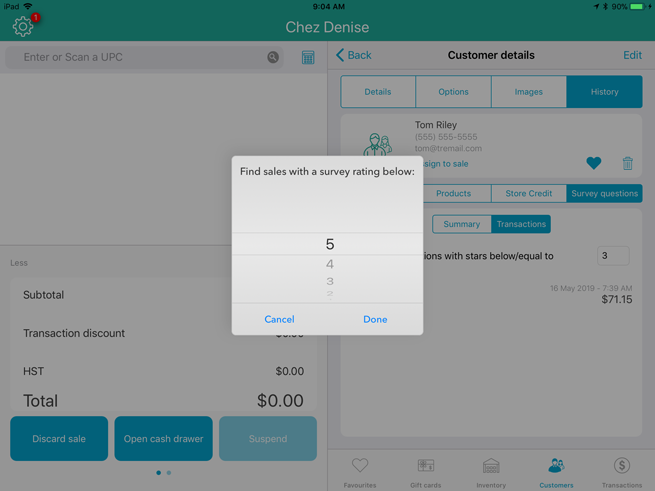
c. Scroll/tap the star rating you wish to view.
d. Tap Done.
The results appear below.
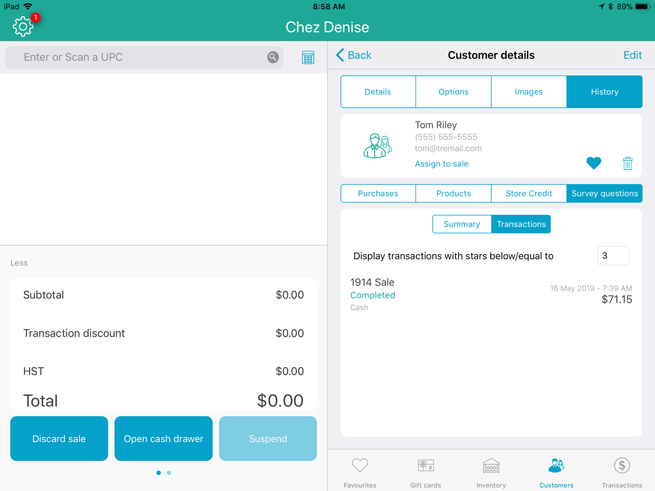
e. (Optional) If you wish to see more detail, tap the sale in the results.
The individual responses to the survey questions on this particular transaction appear.
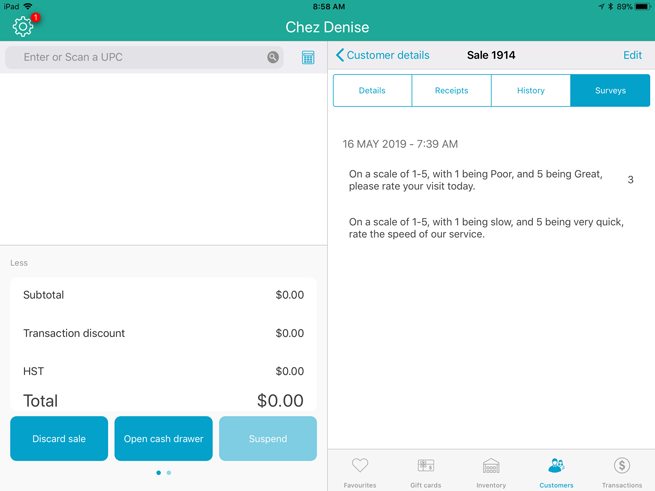
f. Once finished viewing, tap <Customer details to return to the History tab, then proceed to step 8.
8. Tap <Back at the top of the right pane.
The Customer Search screen reappears.