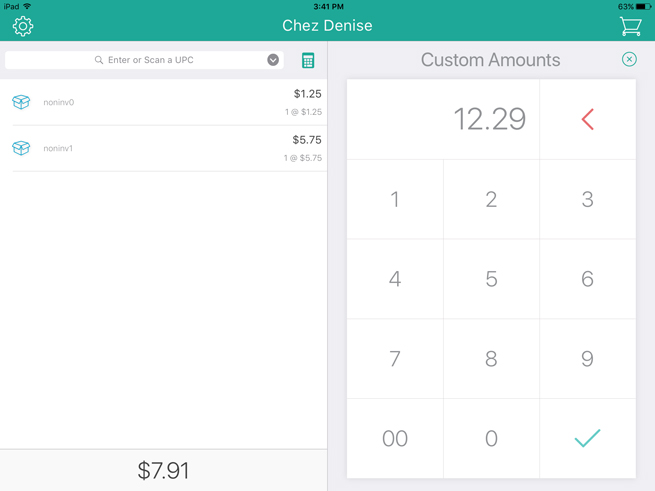
At any point during a purchase transaction, tap the Custom Amounts button ( ) at the top of the left pane.
By default, the Custom Amounts function is enabled. It appears at the bottom of the right pane.
At any point during a purchase transaction, tap the Custom Amounts button () at the top of the left pane.
The button turns blue and the numeric keypad appears over top of the Favourites Group.
Use the numeric keypad to enter a price for the product.
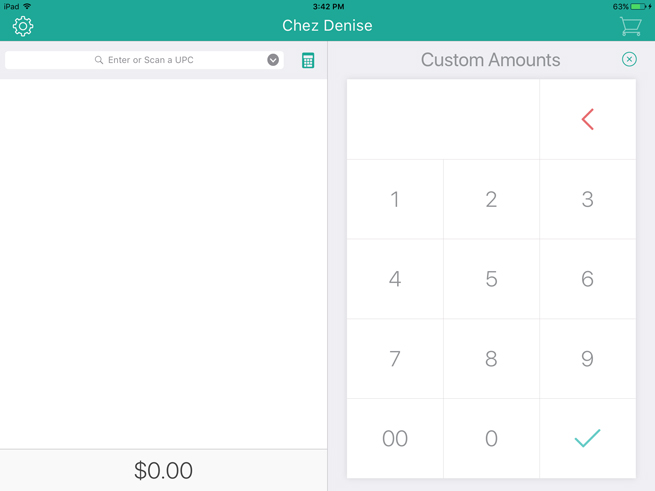
Tap the checkmark button ( ) to add the product to the sale.
The non-inventory product is added to the transaction.
Repeat steps 2 and 3 for additional non-inventory products being added to this sale.
NOTE: You can add multiple non-inventory products to any sale. You can also adjust their quantity or prices, and apply discounts just like you would with any other product.
To close/hide the Custom Amounts numeric keypad, tap the Favourites button at the bottom of the right pane.
The keypad disappears and the Favourites Group becomes visible.