 ) at the bottom of the POS view. Notes are saved with the transaction and can be viewed when you retrieve the transaction at a later time.
You can add notes to the current sale or return by clicking the Notes button () at the bottom of the POS view. Notes are saved with the transaction and can be viewed when you retrieve the transaction at a later time.
NOTE: You can also add notes to a customer record. For help, see Adding a New Customer and Viewing/Updating Customer Details.
At the bottom of the POS view, click the Notes button ().
The General Information popup appears.
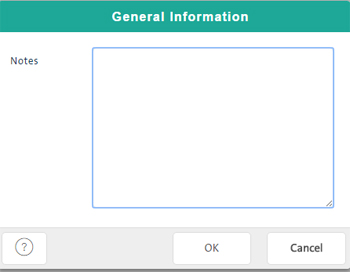
In the text area, enter notes you want to save with the current sale or return.
TIP: Double-click the text area to display the virtual keyboard.
To save the notes and close the popup, click the OK button.